How to Use This Tool
- Select iPhone, Android or unknown, then calls, alarms, media, all sounds or unknown. Treat incoming-call ringing separately from a caller’s voice during an answered call.
- Select the observed phone or external output and Focus or Do Not Disturb state. Keep unverified routing or mode information unknown.
- Review the matching sound settings on the phone. Check the relevant volume, selected sound and permitted interruptions. This page does not play a test sound or trigger an alarm.
Calculation Method
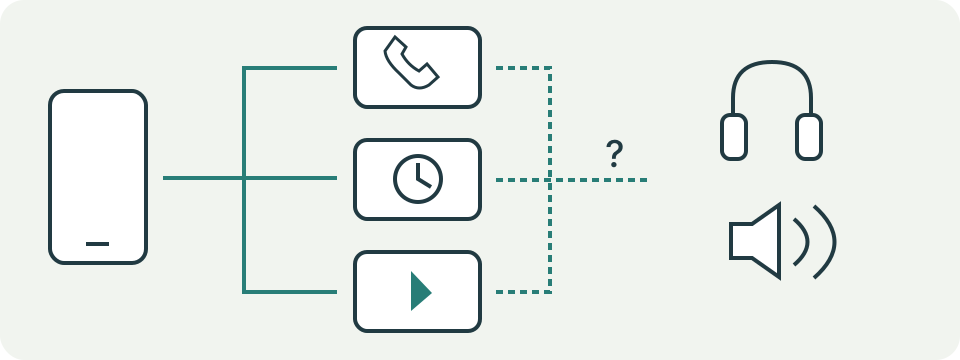
Incoming-call ringing, media and alarms follow different controls. Android exposes separate sound volumes, with interruption rules that can allow or block alarms and media. Standard iPhone Clock alarms sound despite Silent mode and Do Not Disturb; check the selected alarm sound and Ringtone and Alerts volume instead. External routing can affect media without moving every sound off the phone.
Worked Example
An iPhone has silent Clock alarms, phone output selected and Do Not Disturb observed on. Review the alarm’s selected sound and alert volume. Do Not Disturb alone does not explain a silent standard Clock alarm.
Describe the Missing Sound Precisely
Start with the phone model, system version and exact app. Incoming-call ringtone, the other person's voice during a call, an alarm and media are different tasks. This tool's calls option means the incoming ringtone, not a measurement of the earpiece during a conversation. Select several sound types only after comparing them separately. A silent video in one app is not evidence that every speaker function has stopped working.
The page uses four manual observations: platform, sound category, selected output and interruption mode. It cannot read the phone's volume, Silent switch, Focus rules, Bluetooth devices or alarm settings. Unknown keeps an unobserved detail open. The result organizes checks rather than naming a fault or changing the phone. No microphone permission is needed for this guide, and it does not record audio or listen for the missing sound.
Compare the Right Volume Control
On Android, the documented controls distinguish media, in-call voice, ring, notifications and alarms, although layout and grouping vary by manufacturer and version. Pressing a side button may adjust a different category depending on the current activity. Start known media when checking media volume; inspect the relevant slider for a ringtone or alarm. A high media slider does not establish a high alarm slider or the volume of an incoming call.
For a standard iPhone Clock alarm, Apple's instructions point to the ringtone and alerts volume and the alarm's own selected sound. This is different from raising the volume of a video player. Check the device's current settings rather than assuming a side button changed the needed category. Keep the original setting and make a short comparison at a comfortable level. Loud playback is unnecessary for documenting a setting that was muted or routed elsewhere.
Check a Ringtone as an Incoming-Call Task
Review the selected ringtone, ring volume and the phone's Silent or vibrate control. Then check active call rules, including relevant contacts and interruption modes. A ringtone preview can establish that a selected sound plays under those preview conditions. An arranged test call adds a different observation about actual incoming-call behavior. One preview alone does not verify every contact rule, scheduled mode or third-party calling app.
Do not confuse a missing notification with a missing ringtone. Record the app and category actually affected. When only one caller or app is silent, compare its settings before treating the whole phone as faulty. A mode that allows one contact may still filter another. This page does not inspect those rules, identify blocked callers or bypass managed settings. Its call checklist is a place to organize observations for the phone or app's official help.
Check the Alarm Inside the Actual Alarm App
Open the alarm you meant to use. Confirm its enabled state, intended time, repeat schedule and selected sound, then create a short test in the same app. Record which alarm actually sounded, not only a ringtone preview. Standard iPhone Clock alarms have documented behavior that differs from call filtering: Silent mode and Do Not Disturb do not suppress them. A sound set to None still needs attention; turning off Focus is not a universal alarm fix.
Apple also documents standard Clock alarms using the built-in speaker as well as connected headphones. The external-output selection therefore does not produce an external-only routing explanation for an alarm-only observation. Third-party alarms and Android implementations need their own current documentation. Do not transfer an Apple rule to every alarm app. A passing short test documents that one configuration worked then; it does not certify a future schedule or make this browser page an alarm service.
Separate Media Playback and Output Routing
Play known material and inspect the player's mute control, playback state and selected audio destination. A Bluetooth or wired output can be relevant to media even when the phone's own speaker is silent. Compare another available output with the same material, then another app with the same output. Change one item at a time so the observations remain meaningful. A silent source file is a different problem from a destination that receives no sound.
For example, choose Android, media, external output and no active interruption mode. The guide includes media checks, an output comparison, Android controls and an evidence record. Choose iPhone, alarms, external output and active Focus instead. The guide includes alarm and Focus-rule checks but does not claim the alarm went only to headphones or that Focus muted it. These examples describe the checklist's branches, not measured audio or confirmed causes.
Use Interruption Modes and Test Results Carefully
Record the active mode and its allowed people, apps or sound categories. A scheduled rule can explain why a call comparison differs at another time, but the mode's presence alone proves no cause. Android alarm allowances depend on the device's rules. Compare only a relevant reversible setting and restore it afterwards. Keep call filtering distinct from the documented standard iPhone alarm behavior rather than treating all silence as one setting.
Unknown details add observation steps, several sound types add separate ringtone, alarm and media groups, and a known platform adds its relevant controls. Reset clears the page selections; it does not reset the phone. Save the category, app, output, setting changed and observed result for persistent problems. The browser speaker test offers a separate controlled playback task, while the connection-path guide helps record an external route. Neither follow-up certifies hardware condition or replaces model-specific support.
What the Result Means
Settings vary by model, operating system and alarm app. The guide does not verify audibility, measure a speaker or guarantee an alarm will fire. Unknown settings remain unknown. Persistent problems across sound types need the manufacturer’s troubleshooting; a manual selection does not prove hardware failure.
Common Questions
Does Media Volume Also Set Every Alarm’s Volume?
No. Android has an alarm volume. Standard iPhone Clock alarms use Ringtone and Alerts; other alarm features or apps may have different controls.
Do Headphones Move Every iPhone Alarm Away from Its Speaker?
No. Apple states that standard Clock alarms also play through the built-in speaker with wired or wireless headphones connected.