Match the Source, Receiver and Content Stage
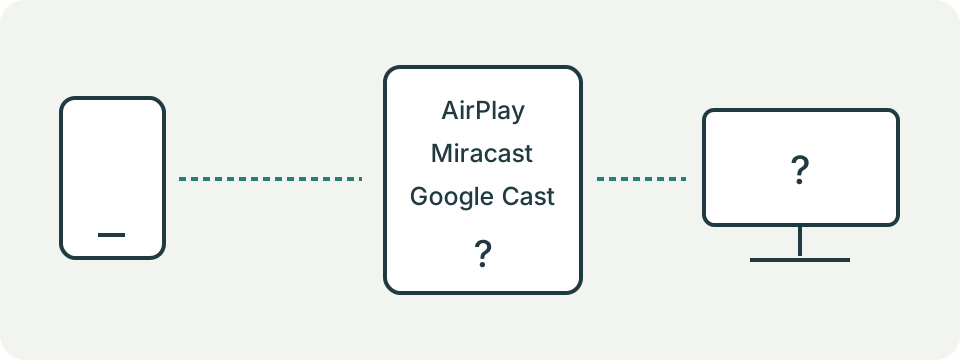
Start with the receiver’s exact model and documented protocol. AirPlay, Miracast and Google Cast are different paths. Apple’s native screen mirroring uses supported AirPlay receivers. An iPhone can send media from a Cast-enabled app without offering native full-screen Google Cast mirroring.
Then identify the failed stage: receiver absent, connection failing or content black. Check discovery in the correct menu or app. Microsoft documents Miracast paths using Wi-Fi Direct and supported infrastructure modes; a shared local network is not a universal condition. An app’s playback restrictions can differ from ordinary screen sharing.
Compare One Change Against Documented Requirements
For CarPlay, confirm the vehicle or stereo’s supported method before comparing attempts. Wired support does not establish wireless support. Use Apple’s CarPlay guidance alongside the vehicle manual for the USB data port, cable, car menu, Siri and wireless setup.
Keep the same phone, car and method while changing one observed condition. A phone charging through USB proves power is arriving, not that CarPlay data works. Record what changed and what appeared afterwards. A successful comparison can guide the next check without proving one faulty component.
Record the Sound Type and Observed Output
Incoming-call ringing, standard Clock alarms and media use different controls. Check the relevant sound and actual output, rather than assuming the last volume button adjusted everything. Apple states standard iPhone Clock alarms still sound with Silent mode or Do Not Disturb; Android permits configurable alarm and media interruption rules.
Keep untested settings unknown. Note the device model, software version, affected sound, observed mode and repeatable symptom for official support. The guided pages do not measure a speaker, play test sounds or schedule alarms. Do not include passwords, pairing secrets or private account details in a troubleshooting record.
Name the Method Before Following Instructions
Write the exact source device, receiver and intended method. Wired CarPlay, wireless CarPlay, AirPlay video, AirPlay screen mirroring, Google Cast from an enabled app, Android screen casting and Windows Miracast are not interchangeable names for the same connection. Each has different discovery, transport and compatibility requirements.
Use the button or menu that belongs to the chosen method. A Cast icon inside an app starts an app-level Cast session. Screen Mirroring in iPhone Control Centre starts AirPlay mirroring to a compatible receiver. Windows logo key plus K looks for a Miracast display. A receiver appearing in one list does not prove support for the others.
| Task | Source control | Receiver evidence |
|---|---|---|
| Wired CarPlay | USB connection and CarPlay menu | Vehicle manual names CarPlay and a data port |
| Wireless CarPlay | Vehicle pairing flow | Exact model supports wireless CarPlay |
| AirPlay mirroring | Screen Mirroring control | Apple TV, compatible TV or enabled Mac |
| Google Cast media | Cast button in enabled app | Chromecast, Google TV or TV with Cast |
| Windows projection | Windows + K | External display supports Miracast |
Confirm Compatibility by Exact Model and Software
A USB socket, Bluetooth logo or Wi-Fi connection is not enough evidence. Check the exact phone, vehicle or stereo, television, receiver, operating-system version and supported protocol in their current manuals. A vehicle can offer wired CarPlay but not wireless CarPlay. A television can support one casting system without another.
Treat adapter marketing and community lists as leads, not final proof. Region, model year, trim, firmware and optional entertainment packages can change the answer. Record the manual page or support URL used, its date when visible and the firmware version on the receiver. Contact the maker when the manual is ambiguous.
For Wired CarPlay, Prove Data Rather Than Power
A charging icon proves that electrical power reaches the phone. It does not prove that the cable carries data, that the vehicle port supports CarPlay or that the infotainment system accepted the session. Use the vehicle’s documented CarPlay USB port, a direct cable intended for data and the phone connector specified by the manufacturer.
Inspect both connectors for debris, looseness or damage without using metal tools. Bypass extension leads and multiport adapters during the comparison. Apple notes that some USB-C to Lightning adapter, cable and vehicle combinations can disrupt wired CarPlay, so a direct cable is a useful controlled test. Stop when a connector becomes hot or unstable.
For Wireless CarPlay, Separate Pairing from Transport
Initial discovery often uses Bluetooth, while the working session also depends on Wi-Fi and the vehicle’s own setup flow. Apple’s current checks call for Bluetooth and Wi-Fi to be on, Auto-Join for the CarPlay network, Siri availability and CarPlay not being restricted. Follow the vehicle manual because the button or menu that begins pairing varies.
Forget and re-pair only after recording the existing vehicle entry and confirming access to any needed setup instructions. Restarting both phone and vehicle is reversible; resetting all network settings is a much broader change that can remove saved networks. Test CarPlay after each step so one successful change remains identifiable.
For AirPlay, Test Discovery Before Protected Content
Apple’s current AirPlay instructions place source and receiver on the same Wi-Fi network for ordinary streaming and mirroring. First try a local photo or simple screen view that the device owns. If the receiver is absent from the AirPlay list, focus on receiver availability, network membership, AirPlay settings and current software before analysing one video app.
If the receiver appears and ordinary content works but one app shows a black screen or lacks AirPlay, keep that as an app or content-stage result. Apple states that some video apps may not support AirPlay. Do not present recording, capture hardware, unofficial apps or account sharing as a way around content rules.
For Google Cast, Distinguish an Enabled App from Screen Casting
Google’s current instructions require a supported receiver, a current Cast-enabled app and normally the same Wi-Fi network. On recent iOS and macOS versions, Local Network permission is also required for discovery. Use the Cast button inside the chosen app and confirm that it becomes connected before controlling playback.
An iPhone running a Cast-enabled app can send media without offering native full-screen Google Cast mirroring. Android screen casting through Google Home is another workflow. Chrome tab casting is another. Write which path failed. If one app lacks the button while another works, check the affected app’s support and version rather than resetting the television.
Check Network Separation Without Weakening Security
A phone and receiver can show the same Wi-Fi name yet be separated by a guest network, client isolation, VLAN, secondary router or hotspot design. Compare the network name and the router’s documented guest or isolation setting. Do not disable the firewall, router security or access controls simply to make discovery easier.
A VPN can change routes or local-network access, but its presence is not proof of the cause. Pause it only when policy allows, record the state and retry the same discovery step. Managed, school, hotel and workplace networks may deliberately block peer discovery. Ask the network owner instead of attempting to bypass those controls.
Substitute One Link in the Path
Keep source, receiver, method and test content fixed while changing one link. For wired CarPlay, try one known data cable or documented vehicle port. For wireless display, try the same source and receiver after an ordinary restart. For app casting, compare two supported apps without changing the account, router and television together.
Return the original item before the next substitution. A successful replacement narrows the path but does not by itself prove the removed item is faulty; connector fit, power, firmware and timing may differ. Record no receiver, receiver found, pairing failed, connected then dropped, connected with black content, or connected with no sound as separate outcomes.
Treat Sound as Its Own Route
A connected picture does not guarantee that sound uses the intended output. Record whether the problem affects media, calls, navigation, notifications or alarms. Check the active output and the volume stream for that sound type. Do not assume the last hardware-button change controlled every stream.
For CarPlay or casting, test ordinary media at a safe level before changing call, alarm or notification settings. A receiver can be selected while muted, an app can have its own level, and a phone can route calls differently from music. The guide does not play a test sound, schedule an alarm or measure speakers.
Prepare a Privacy-Safe Support Record
Write exact models, OS and firmware versions, chosen protocol, receiver list result, connection stage, test content type and the one condition changed. Include the exact message on screen and time of failure. A short record lets vehicle, television, app or phone support begin at the correct stage.
Remove account names, home network names, vehicle identifiers, pairing codes, serial numbers not requested and private content from screenshots. Never publish a CarPlay or AirPlay passcode. The guide cannot inspect radios, cables, receiver logs, DRM state or network policy, and it cannot certify a faulty component.