How to Use This Tool
- Start capture and focus the test area.
- Press and release each key. Hold one key briefly to see repeated events.
- Use the text log to check event details. Stop capture or reset before starting another test.
Calculation Method
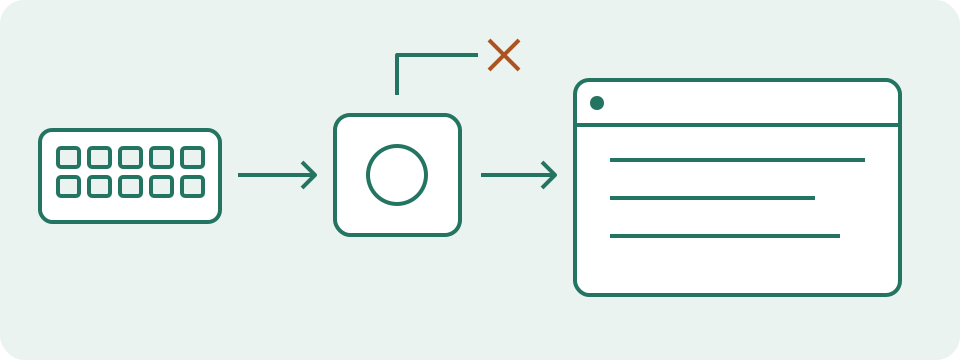
The key value reflects your active layout and modifiers. The code identifies a reported physical key position; its label may differ from the character printed on your keyboard. Location can distinguish left, right and numeric-keypad keys. Repeated keydown events during a hold are expected.
Worked Example
Pressing left Shift can report key Shift, code ShiftLeft and location 1. Right Shift can report ShiftRight and location 2. Releasing the key changes its recorded state.
Run a Short, Focused Keyboard Check
Start capture, then use the focus control or click the test area. Press one ordinary letter and release it before trying other keys. Check that a down event appears and that the held entry disappears after release. Work through the keys needed for the failing task rather than pressing everything at once. Keep a separate note of what was physically pressed. The latest-event log holds 30 entries, so a long held key can push earlier observations out of view. Stop retains the visible history; Reset or a new Start begins a fresh session. The page does not keep a permanent list of every key tested.
Read Key, Code and Location Together
The key field describes the meaning reported under the active input layout and modifiers. The code field reports a position identifier. They answer different questions. Shift with the Digit2 position can produce @ under a US English layout and a quotation mark under UK English. That difference can be correct. Left and right Shift normally share the key value Shift but report different codes and locations. The examples below describe possible browser reports, not a required output from every device. Virtual keyboards, accessibility tools and driver mapping can change the report. A code value does not authenticate a keyboard model or prove that its printed labels match the active layout.
| key | code | location |
|---|---|---|
| Shift | ShiftLeft | 1 |
| Shift | ShiftRight | 2 |
| Enter | Enter | 0 |
| Enter | NumpadEnter | 3 |
Separate a Held Key from Repeated Presses
Holding a letter commonly produces an initial keydown followed by repeated keydown events with repeat true. The tester maintains one held entry for the same reported code and location. These repeated events are not several simultaneously held copies of a key. Release should remove that held entry when the keyup reaches the focused page. Unexpected duplicate text in another application needs a separate check: record deliberate press and release actions, then compare the receiving application and this log. This tester does not calculate chatter gaps or label switches defective. The operating system can apply repeat settings before events reach the browser, and composition input does not always follow a simple letter-by-letter sequence.
Check a Combination Without Claiming a Rollover Rating
Choose the exact combination used in the application, such as holding two movement keys and then an action key. Keep the first keys held, add the next key, and inspect the held entries. Release each key before changing the combination. Record both the successful and missing reports together with browser, layout and connection details. An observed combination establishes what reached this page during that attempt. It does not certify 6-key rollover, N-key rollover, every possible combination or the application's own bindings. Compare another relevant combination and another receiving application before attributing a missing action to the keyboard. Reserved shortcuts can prevent this page from receiving an otherwise working key.
Handle Missing Events and Focus Changes
Tab continues to move focus normally. A system shortcut can open another window, and Fn may be handled inside the device without creating a browser event. Leaving the keyboard test area stops capture and clears held states. Hiding the tab or leaving the browser also stops the session. A cleared entry after focus loss is housekeeping, not evidence that a physical key was released. Refocus and start a fresh check before interpreting a missing keyup. Dead and Unidentified values describe event reporting; they do not establish a failed switch. Mobile text entry may use composition rather than the physical events this tool expects. Avoid typing passwords or private messages into any diagnostic session.
Choose the Next Check from the Evidence
Correct key events with the wrong characters in an editor point toward the active layout, application shortcuts or text input settings. A combination missing only here calls for checking focus and reserved shortcuts. A consistently absent ordinary key across applications and connections is stronger evidence to give the manufacturer, but still needs device-specific testing. Preserve a short written record because this page offers no log download. For actions that arrive correctly yet feel late in a game, continue with the input-delay guide and record frame delivery and display mode. Browser event presence alone cannot measure physical input latency, USB polling rate or the time until a screen changes.
What the Result Means
Keep the area focused. Fn, system shortcuts and some browser shortcuts may never reach the page. Losing focus can hide a release event; the test clears held states on stop or focus loss. Missing events alone do not diagnose a broken key.
Common Questions
Does This Work with AZERTY or Another Layout?
Read key and code together. A fixed keyboard drawing cannot represent every layout accurately.
Can It Certify Rollover or Input Latency?
No. It displays combinations and events that reach this browser session, without certifying hardware limits or timing.