Describe the Action That Goes Wrong
Write one observable symptom before changing settings. A key that never produces an action, an action that happens twice, a camera turn that feels late and a character that jumps backwards are different starting points. Record the game, device, connection, display mode and scene. Note the time of the problem and the game's own FPS, frame-time or ping readings when available. A general statement such as “everything lags” hides useful distinctions. Use the input-delay checker to select the observed context and symptoms, then treat its suggestions as next checks. The checker reads your answers; it does not detect hardware or measure milliseconds. Missing information should stay unknown rather than becoming a guessed diagnosis.
Separate Local, Online and Cloud Paths
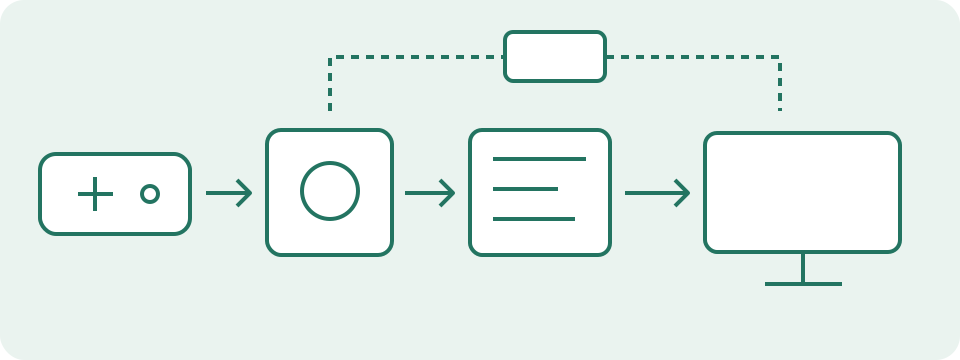
A game running locally takes input, processes the scene and sends an image to the local display. An online game has that local path plus communication with a server. Its local camera may move promptly while a server-controlled action or correction arrives later. A cloud game adds input transmission to a remote system, remote rendering, a returning video stream and local decoding. These stages can produce several causes of delay at once. Compare a repeatable offline scene or local menu with the online task when the game supports it. A good offline result narrows the comparison but does not prove that every local stage stays unchanged online. Do not compare two unrelated games as though their workloads and input handling were identical.
Check Missing and Duplicate Input First
Use the keyboard or mouse tester for an action whose event seems absent or duplicated. Start a fresh session, keep the test area active and perform a short sequence of deliberate presses and releases. Compare the visible log with the physical actions. A held letter can repeat normally, and a remapped primary mouse button can report a different physical side. Browser and operating-system shortcuts may intercept a working key. The double-click tester highlights adjacent same-button press intervals under a chosen rule; it does not diagnose a switch. An event received in the browser establishes only that observation. It cannot prove that the game uses the same binding or that the time from physical action to displayed image is short.
Read Frame Rate and Frame Time Separately
FPS counts rendered frames per second; frame time describes an interval in milliseconds. For evenly spaced frames, the interval is 1,000 divided by FPS. Sixty FPS corresponds to about 16.67 ms, while 120 FPS corresponds to about 8.33 ms. These are interval calculations, not whole-system latency measurements. An average FPS can hide a pause followed by quicker frames. Look for a frame-time graph supplied by the game or a supported diagnostic tool, and note the scene where a spike occurs. Avoid comparing a menu's FPS with a busy gameplay scene. A graphics change that improves one scene may not address a different bottleneck. Keep the same action, camera position and repeatable workload for a useful before-and-after comparison.
| Rate (FPS or Hz) | 1,000 ÷ rate (ms) |
|---|---|
| 60 | 16.67 |
| 120 | 8.33 |
| 144 | 6.94 |
| 240 | 4.17 |
Check the Signal Mode Reaching the Screen
Refresh rate in Hz describes how often a display refreshes. It is not automatically equal to the game's FPS, and a high advertised maximum does not prove the current connection uses that mode. Read the active resolution and refresh rate in system and display settings, then compare the supported source, cable and display combination. A game mode on a television can change processing, but its effect depends on that model and mode. Pixel response time concerns a transition between colours and is different from total action-to-image delay. The interval table cannot certify either quantity. Compare one supported display setting at a time and restore it before testing another variable. Keep resolution, refresh rate and picture mode in the written record.
Run a Reversible Local Comparison
Choose a repeatable training scene, replay or menu action where the symptom can be reproduced without affecting other players. Record the original graphics, frame cap, synchronization and display settings. Change one available setting, repeat the same action and write down the visible change plus available frame statistics. Return to the original value and repeat again to check that the comparison persists. Changing five settings at once makes the cause difficult to identify. Vendor-specific low-latency options have their own game and hardware requirements; a setting from an old optimization article is not a universal instruction. Avoid unsupported registry scripts, driver downloads from unknown sites or permanent system changes during an initial comparison.
Compare Network Evidence with the Game's Endpoint
A ping value normally describes a round trip to an endpoint, not the entire input-to-image path. An 80 ms round trip does not establish two equal 40 ms directions. The game server, a speed-test server and this site's HTTP endpoint can follow different routes and protocols. Use the game's own connection statistics and regional status information when available. The latency and jitter tool observes HTTP request timings; its failures are failed requests, not a measured game packet-loss percentage. Record timing variation and visible online corrections together. A rising ping while FPS stays steady suggests a different next check from falling FPS with unchanged ping, but both problems can happen in the same session.
Repeat the Connection Comparison Under Known Load
Pause a known optional download or cloud backup for a short comparison, then restore it after recording the result. Keep the game region and local scene comparable. A wired Ethernet test can remove the Wi-Fi radio link from that attempt when the device and network support it; improvement does not identify the exact interference source. A different route or VPN changes several network conditions and is not guaranteed to improve latency. Follow game-specific support instructions rather than changing ports, disabling security software or changing DNS without evidence. One quiet test cannot describe every evening's shared network load. Several dated observations under documented conditions are more useful than a single best result selected from many attempts.
Use Controller Readings Within Their Limits
The gamepad tester can show the reported buttons and axes of a connected controller in a supported, secure, focused browser. Starting the test may still require pressing a controller button before the browser exposes it. No listed device can mean an unsupported or blocked API, missing interaction or a connection issue; it is not a hardware failure verdict. Compare released and pressed values and note the reported mapping. The page refreshes displayed snapshots at most once every 100 ms through animation scheduling. That is a display choice, not the controller's sampling rate. A small axis value does not set the game's dead zone or establish its effect. Compare the same controller in the actual game with unchanged bindings and sensitivity.
Keep Measurements and Observations Clearly Labelled
Browser animation timing, game FPS, network RTT and a monitor laboratory's input-lag result describe different boundaries. Adding unrelated figures does not produce a trustworthy total. Laboratory results need matching methodology and signal mode; camera comparisons can be approximate and depend on capture timing. This guide and its tools do not measure photons or the instant a physical switch closes. Keep the existing input-path diagram as a map of stages, without treating arrow length as time. For support, provide the exact action, expected result, observed result, original settings, changed setting and repeated outcome. Add relevant device and software versions without passwords or private account data. That record gives the game or device provider a concrete starting point instead of a broad claim that the whole system is slow.