How to Use This Tool
- Choose an interval window in milliseconds, start capture and use the test area.
- Press the same button twice, then try deliberately slower presses.
- Review the intervals. Stop capture or reset to begin a fresh session.
Calculation Method
For each button, the interval is the current event time minus the previous event time, using a monotonic browser clock. A pair is highlighted when its interval is at most your chosen window. Consecutive pairs can overlap. The window is a test setting, not a reading of the operating system's double-click setting.
Worked Example
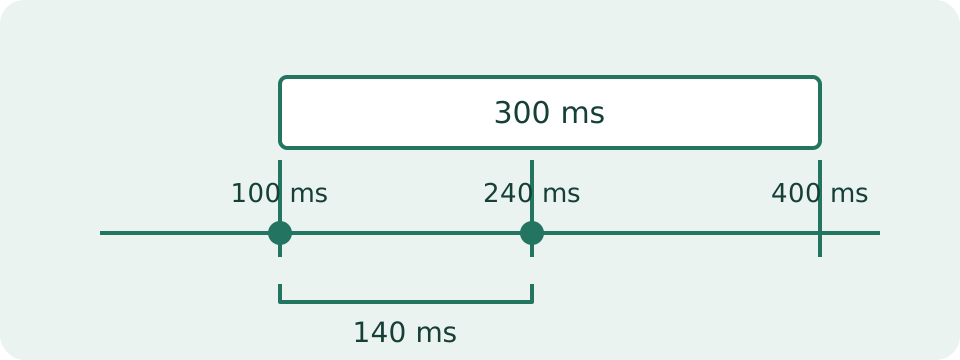
Recorded handler times of 100 ms and 240 ms give an interval of 140 ms, within a chosen 300 ms window. A later 700 ms interval falls outside that window.
Compare Recorded Presses with Intended Actions
Choose a timing window, start capture and place the pointer in the test area. Begin with deliberate single presses, allowing a clear pause between them. Then try an intentional pair. Keep these attempts separate so that a highlighted pair has an identifiable physical action to compare against. The display counts accepted presses and highlights qualifying adjacent pairs; the recent-pair list keeps 30 entries. It does not record video or know what the hand intended. Touch and pen reports are excluded, but a touchpad reported as mouse can be included. Test one device at a time and stop capture before using ordinary page controls.
The Window Is Your Observation Rule
The default 300 ms is an example window for this page. It is not a retrieved operating-system setting or a validated limit separating working and defective switches. Accepted windows are greater than zero and at most 5,000 ms. An interval equal to the chosen window qualifies, because the comparison is inclusive. Changing the window clears the session so earlier counts are not silently reclassified under a new rule. A shorter window highlights fewer pairs from the same hypothetical event sequence. That change reflects the rule, not an improvement to the mouse. The tool does not adjust the system's double-click speed or alter an application's click recognition.
Understand Overlapping and Separate-Button Pairs
Each accepted press is compared with the preceding press of the same button. A different button between them does not become the previous press for that button. In the table, primary presses at 100, 260, 430 and 730 ms create intervals of 160, 170 and 300 ms. All three qualify under a 300 ms window. Four presses therefore create three overlapping pairs, not two independent double-click gestures. Secondary presses at 300 and 630 ms make their own 330 ms pair, outside the window. The first press of each button has no interval. These are illustrative browser-clock times, not a recording from your device.
| Button | Time (ms) | Interval (ms) | Comparison |
|---|---|---|---|
| 0 | 100 | ||
| 0 | 260 | 160 | ≤ 300 |
| 2 | 300 | ||
| 0 | 430 | 170 | ≤ 300 |
| 2 | 630 | 330 | > 300 |
| 0 | 730 | 300 | ≤ 300 |
Timing Begins When the Handler Runs
The interval subtracts two performance.now() readings taken as accepted presses are handled. This monotonic clock avoids ordinary wall-clock corrections, but it does not expose the instant a switch physically closes. Driver processing, event delivery, a busy page and timer precision can affect observations. A decimal display is not a certificate of matching physical accuracy. The tester counts adjacent presses rather than listening for the browser's native dblclick gesture. Native gesture recognition also involves its own event sequence and system/browser rules. A highlighted pair here may have been intentional, and a recognized double-click in another application need not match the chosen rule used on this page.
Reset Before a Different Attempt
Stop ends capture and clears held-button states while retaining the timing history. A new Start or Reset clears that history. Use a fresh session for another device, connection or gesture so the previous press does not become an unintended reference. Hiding the tab or leaving the browser stops capture. Record the selected window alongside any saved written observations. Note which button was used, how many deliberate actions were performed and which pair appeared unexpected. This page has no export or histogram. Keeping a brief manual record is more useful than comparing counts from sessions with different windows, mixed intentions or unclear focus states.
Treat Unexpected Pairs as Evidence to Investigate
Repeat several slow single presses under unchanged conditions. Compare the same action in another application, then change one supported connection or relevant setting and repeat. Check existing macro, remapping and accessibility settings before assuming a switch fault. An isolated close interval cannot identify the cause of an extra press, and no universal human-speed cutoff applies to every input source. Consistent unexpected pairs across applications can support a manufacturer report with device and connection details. They still do not identify a repair or require a replacement. Use the general mouse tester for down/up or wheel problems. Correct presses followed by late game response require a separate input, frame-delivery and display check, not a smaller window.
What the Result Means
Browser timing can be reduced in precision or delayed. Only input reported as mouse is counted; a touchpad may also report that type. Close pairs are observations, not proof of a faulty switch or a hardware latency measurement.
Common Questions
Is 300 ms the Operating System's Default?
No. It is an example window selected for this test. The page does not read your system's double-click setting.
Can Touch or Keyboard Activation Count as Mouse Presses?
Those inputs are excluded from the mouse timing test. Check the input-type status and use the text log to review accepted events.