How to Use This Tool
- Set the page and system volume low, and confirm the intended output device.
- Choose Left, Right or Both and press Play. Audio starts from your action.
- Press Stop before changing equipment or ending the test. Adjust the volume gradually as needed.
Calculation Method
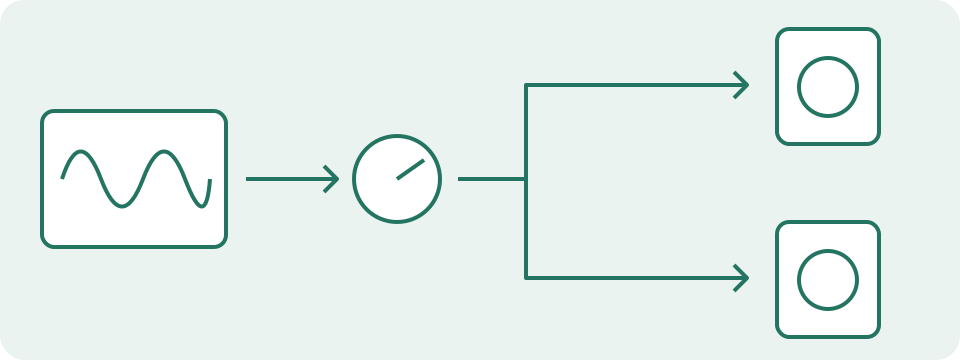
Web Audio generates the tone locally, adjusts its gain and routes it to the requested stereo channel. Playback requires a supported API and an active audio context. This test does not request microphone or camera access and does not record sound.
Worked Example
Choose Left and note where the tone is audible; stop, then repeat with Right. On a stereo output, the two requests should be distinguishable. A mono output can combine both requests.
Choose the System Output Before Playing
Select the intended output in the operating system before starting. This page has no output-device picker: sound uses the browser's current playback route. That route can lead to headphones, a monitor, a dock, wireless equipment or speakers. Begin with modest system and hardware volume. Choose Left, press Play, listen briefly and press Stop. Changing the channel stops the existing tone and requires Play again. The status reports active synthesis and the requested channel, not a confirmed physical sound. A disconnected output or muted downstream stage can remain silent while the page is actively generating samples.
Read the Channel Table as a Requested Connection
The signal is a 440 Hz sine wave. Left connects it to merger input zero; Right uses input one; Both sends the same tone to both. An inactive input has no tone from this generator. These are requested digital channels before the operating system and playback equipment handle them. Mono settings can combine them, and routing can remap them. Hearing sound from both physical speakers during Left therefore needs a route check before a wiring diagnosis. This page does not provide a frequency sweep, phase comparison, polarity test, surround-channel mapping or music sample. It cannot certify bass extension or overall frequency response.
| Selection | Channel 0 | Channel 1 |
|---|---|---|
| Left | 440 Hz | − |
| Right | − | 440 Hz |
| Both | 440 Hz | 440 Hz |
The Percentage Scales Amplitude, Not Perceived Volume
The page starts at 5% and permits values from 0% to 25%. Five percent applies a linear amplitude multiplier of 0.05 to the generated signal. Ten percent doubles that multiplier, which is about +6.02 dB in amplitude level, not a promise of twice the perceived volume. System volume, device gain and acoustic conditions remain separate. Zero deliberately generates silence after the gain stage; it is not a speaker fault. Startup ramps the gain over 20 ms and slider changes are smoothed. The tone continues until stopped. No microphone is used to measure sound pressure, electrical power or physical output.
Keep a Short Observation Record
Hold position and system volume constant while testing Left, Right and Both. Write down the selected system output, the requested channel and where sound was actually heard. Compare the two single-channel observations before judging the combined result. A mono device can correctly produce one physical output for either request. A reversed observation can come from remapping or the connection path, not necessarily reversed wires. This page has no heard/not-heard buttons, saved pass/fail result or calibrated balance score. The useful result is your controlled observation. Repeat a change once under the same conditions so it can be described to official support.
Investigate Silence One Stage at a Time
Use a page amplitude above zero and check that the tab, system and device are not muted. Confirm the intended output is connected and powered, then inspect system balance and mono settings. A playback-blocked state needs a fresh Play action after the browser restriction is addressed. An error is not simulated success. Compare another ordinary source on the same route, then one supported route with the same source. A difference narrows the path to examine; it does not automatically identify a damaged speaker. Avoid resetting drivers or bypassing system restrictions on the strength of one silent tone.
Stop Playback and Keep Input Checks Separate
Stop ends the oscillator and closes this page's audio context. Hiding the tab or leaving the page also ends this tone. It does not mute other applications or disconnect the output device. Tone generation is local, without a microphone request, recording, audio-file upload or download. A working output path does not verify microphone input or the remote side of a call. Use the microphone test for incoming signal and the digital-level guide to understand amplitude readings. Neither a steady 440 Hz tone nor a moving microphone RMS meter measures the full quality of a speaker, headset or complete call.
What the Result Means
The page reports the requested channel, not a verified physical speaker result. System balance, mono settings, Bluetooth profiles and output routing can change what plays. The volume control is a digital level, not calibrated acoustic loudness. No latency, hearing or frequency-response score is provided.
Common Questions
Why Is There No Sound?
Press Play to satisfy the browser’s playback policy, then check tab mute, system mute and the selected output. Unsupported or blocked playback should show a state rather than simulated success.
Why Do Both Speakers Sound on Left or Right?
Check mono audio, system balance and the output path. Channel mixing can occur after the browser. One listening result does not establish a hardware fault.