How to Use This Tool
- Compare a short non-sensitive sample outside this guide or in the keyboard tester. Select matching, mismatched, missing or uncertain output.
- Choose the operating system and whether the issue affects one or all applications. Note any IME or remapping in use.
- Check the intended physical keyboard layout against the selected system input source, then repeat the same comparison.
Calculation Method
A mismatch across applications leads to the selected input source and modifier checks. A one-application issue leads to that application’s input method or remapping. Missing output needs focus and input-event checks. QWERTY, AZERTY and QWERTZ are manual reference examples, not families identified by this guide.
Worked Example
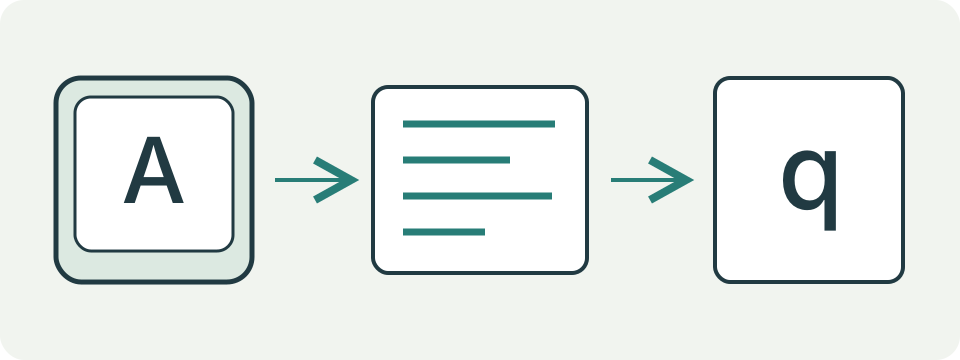
A key printed A produces q without a modifier. This is inconclusive: an input-source mismatch or remapping could explain it. Compare the intended physical layout with the operating system’s selected source before drawing a conclusion.
Compare the Keycap, Physical Position and Produced Character
A keycap shows the legend printed on the keyboard. The selected input source decides the character normally produced. In browser events, key describes the interpreted value while code identifies a physical-key position. Those facts can disagree without the hardware switch being broken.
Use the checker to record operating system, one-app or all-app scope, expected and produced values, dead-key or composition behaviour and known remapping. It does not capture a sample, list installed layouts or determine a country layout. Never type a password, recovery code or private message into any keyboard tester.
| Fact | Example | What it establishes |
|---|---|---|
| Printed legend | Q or A on the cap | Physical labelling only |
| Physical code | KeyQ | Position reported to the page |
| Produced key | q, a, @, Dead | Value after layout and modifiers |
Start with Scope Before Replacing a Keyboard
When wrong characters appear in every application, compare the active input source with the physical keyboard and intended language. When the issue occurs in one application only, check that app’s shortcuts, input mode, profile, extension or remote-session handling first. Replacing the keyboard will not fix an app-specific mapping.
Test the same non-sensitive symbols in a plain local text editor and in the affected app. Record modifiers exactly. A mismatch involving only Shift, AltGr or Option differs from a base-letter mismatch. If one physical key produces nothing, use the event tester and another app before deciding that the switch is missing.
Distinguish Regional Layouts Without Guessing from One Key
UK ISO, US ANSI, Spanish, French AZERTY and Brazilian ABNT2 layouts differ in physical key count, shape, legends and produced values. One symbol is not enough to identify the complete layout. Compare several documented positions, especially number-row punctuation, the key next to left Shift and the key around Enter.
A physical keyboard can be used with another software layout intentionally. Choose the input source that matches the work, or use labelled keycaps and an on-screen viewer. Do not change display language solely to change keyboard layout; the operating system can manage these settings separately.
Understand Dead Keys, Composition and IMEs
A dead key waits for the next character so the system can create an accented form. Browser key can report Dead, and composition events can represent an incomplete sequence. That is not the same as a missing key. Test the complete sequence in an ordinary editor that supports the language.
Input method editors can convert phonetic or component sequences into another script. Their candidate window and composition state belong to the input method, not the physical key. A browser page may report Unidentified or intermediate values. Avoid disabling the input method until the intended language and behaviour are recorded.
Check Remappers, Shortcuts and Remote Sessions
Keyboard managers, gaming software, accessibility tools, macro utilities and application profiles can remap keys. Record the tool and active profile, disable one layer temporarily and test again. Keep a way to restore the mapping. A company-managed device may enforce a profile that the user cannot change.
Remote desktop, virtual machines, browser-based terminals and game streaming can translate keys at more than one stage. Test locally first, then inside the session. Record local layout, remote layout, client software and modifier. A correct local result with a wrong remote result narrows the path without blaming the physical keyboard.
Use Windows and macOS Controls Deliberately
On Windows, inspect the active language and keyboard layout rather than adding and removing languages at random. The taskbar input indicator and language settings provide evidence. Remove an unused layout only after confirming it is not required by another user or workflow.
On macOS, inspect Input Sources and use Keyboard Viewer to compare the current layout and modifiers. The viewer can reveal characters available through Option and Shift. Switching the source is reversible. Do not assume a Mac keyboard’s printed legends describe the active input source.
Interpret the Checker Result Honestly
Layout, application, composition, remap, missing-key, Windows and macOS cards correspond to the answers. They can appear together because software layout, app shortcuts and remote translation can overlap. The cards do not identify a model, detect malware or certify the keyboard.
For support, record the keycap legend, physical position or code, expected value, produced value, modifier state, app scope, active input source and OS version. Exclude typed secrets. A key that fails across local apps and another known computer is stronger hardware evidence, but repair and warranty decisions still belong to the maker.
What the Result Means
Matching one key does not establish a complete layout or hardware fault. Caps Lock, AltGr/Option, dead keys, IME composition, remapping and remote sessions affect characters. The guide cannot change system settings. Mobile or virtual-keyboard observations can be inconclusive.
Common Questions
Why Does the Browser’s Key Code Differ from the Printed Letter?
A browser code describes a key position, while the produced character follows the layout and modifiers. The code name is not proof of the keycap’s label.
Can Changing the Display Language Fix the Mismatch?
Keyboard layout and display language are separate settings. Select the intended input source and compare the same samples; changing the interface language alone does not prove a match.