How to Use This Tool
- Connect or pair the controller through your operating system, then start the test.
- Keep the page focused and press a controller button to help the browser expose it.
- Select the detected device, press and release buttons, move the sticks, then stop the test.
Calculation Method
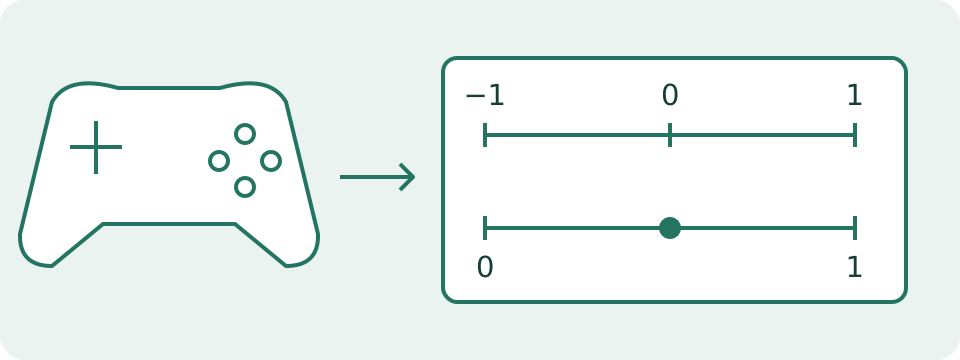
The Gamepad API provides current snapshots. Button values range from 0 to 1; the pressed flag is shown separately. Axes range from −1 to 1. A standard mapping supports a known layout; other mappings retain numbered buttons and axes so the page does not guess their physical labels.
Worked Example
A button value of 0.50 sits halfway between the reported minimum and maximum. An axis value of −0.50 is halfway along its negative range. These are normalized inputs, not measurements of force or stick angle.
Connect Through the System Before Starting
Connect or pair the controller through the operating system using a supported connection. Start the test, keep the page visible and focused, then press a controller button. Some browsers expose a connected gamepad only after interaction. The page distinguishes waiting from an unavailable API, blocked access, a read error, an insecure context and lost focus. Read that state before deciding why no device appears. A USB cable that provides power does not necessarily provide a data connection. Pairing and driver support remain outside this page. The test reads states already exposed by the browser; it does not install a driver, search for nearby wireless controllers or pair a device itself.
Select the Reported Device and Mapping
Use the controller selector when several devices appear. The device index distinguishes entries in the current browser session, and the reported ID describes what the browser and driver expose. Neither is an authenticated serial number or a permanent owner identity. An index may be reused after a device disconnects. Standard mapping allows positional names such as the lower button in the right cluster or the left stick's horizontal axis. Other mappings remain numbered because guessed manufacturer labels could be wrong. Press one physical control and note which numbered value changes. The page does not rewrite mappings, change game bindings or guarantee that every branded feature is included in the Gamepad API.
Read Value, Pressed and Touched Separately
A button value uses the normalized range from 0 to 1. A digital button normally reports endpoints; an analog control can report intermediate values. The pressed flag is shown separately and can depend on browser or platform thresholds. A value of 0.25 therefore should not be translated into a measured force or a universal pressed rule. The touched flag also needs care: the API can derive it from an analog value or pressed state when the button has no dedicated touch sensor. Touch reported is not proof of capacitive sensing. The illustrative table shows possible reports, not required thresholds. Compare a gradual press, a brief hold and a release without interpreting the fields as laboratory measurements.
| Value | pressed | touched |
|---|---|---|
| 0 | Released | No touch reported |
| 0.25 | Released | Touch reported |
| 0.75 | Pressed | Touch reported |
| 1 | Pressed | Touch reported |
Check Axes with Slow, Deliberate Movement
Move one stick in one direction, hold it briefly, return it to rest and repeat in the opposite direction. Axes are normalized from −1 to 1; −0.5 is halfway through the reported negative range, not a measured angle of the stick. Positional names apply only under standard mapping. Compare resting values before and after the same movement and keep the game profile unchanged for a later comparison. A small nonzero resting value does not by itself prove wear or show how the game applies its dead zone. This page has no dead-zone adjustment, calibration, circularity analysis or repair verdict. A game can process the same reported value differently from this display.
Understand the Snapshot Interval and Stopping
The test uses browser animation scheduling but reads new snapshots at most once every 100 ms. That makes the display readable; it does not measure a controller's sampling rate or physical input latency. A very quick press and release between snapshots may not be shown. Hold a button long enough to compare its state rather than trying to measure reaction speed here. Hiding the tab or leaving the browser stops the test and clears the displayed readings. Stop also clears them without unpairing or disconnecting the controller. Start establishes a fresh reading session. The page displays current states and does not keep an event history, count every transition or export a recording.
Repeat an Unexpected Report in the Actual Task
Keep a short manual record of browser, connection, reported mapping and the control tested. Repeat the same slow movement or held press under unchanged conditions, then compare one supported connection or receiving application. Missing input only in this page needs a browser/access check before a hardware conclusion. Input that appears here but fails in a game calls for comparing that game's bindings, profile and supported controller mode. Persistent unintended movement across applications is useful evidence for official device support, not automatic proof of a worn sensor. Vibration, battery state, gyro, hardware polling and physical response delay are not measured by this tool. Use the input-delay checker for the next response-path comparison.
What the Result Means
Detection depends on browser, driver, connection and page access. No detected device is not a hardware-failure verdict. A nonzero resting axis alone does not prove wear. The test does not measure input latency or hardware polling rate.
Common Questions
Why Does the Controller Stay Hidden?
Press a controller button with the page focused. Check system pairing, use a data-capable USB cable and review any unsupported or blocked status.
Does Stop Disconnect the Controller?
No. It stops this page's state updates. Pairing and system connection remain under operating-system control.