How to Use This Tool
- Read the exact host-port and dock specifications.
- Choose the host video protocol and the protocol the dock requires.
- Record whether the manufacturers support your total display setup.
- Record host USB-C charging support, laptop-required watts, dock-delivered watts and whether the specified supply is connected.
Calculation Method
The checker compares the facts you enter. Video requires a compatible documented path and confirmation of the complete display setup. Charging separately checks host charging support, laptop-required watts, dock-delivered watts and external-supply state. Results are planning flags, not a model database match or a successful hardware connection.
Worked Example
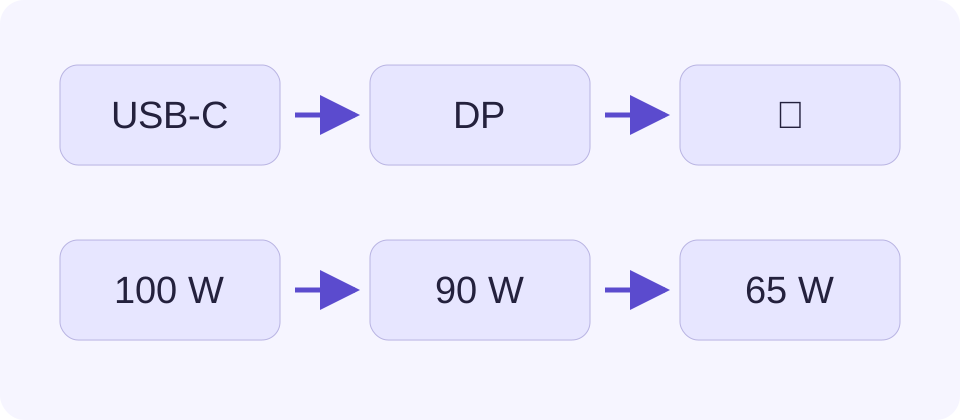
A laptop requiring 65 W and a powered dock documented to deliver 90 W to that laptop have a 25 W numerical margin. That does not confirm charging protocol support. A data-only host still cannot send native DisplayPort video to an Alt Mode dock.
Identify the Exact Port, Not Just the Laptop Family
Find the specifications for the full laptop model and the port being used. Different ports on one laptop can have different functions. Choose data only only when that restriction is documented. Choose DisplayPort Alt Mode, Thunderbolt or USB4 when the manufacturer lists that capability for this port. Unknown is a useful answer when the documentation is unclear.
Then read the dock’s host requirement. Its HDMI or DisplayPort sockets describe outputs, not the protocol required from the laptop. A dock that requires Thunderbolt cannot gain that transport from a data-only USB-C host. A claimed fallback needs documentation for the actual dock and host combination.
Confirm the Whole Display Setup
The display-support answer must cover the total number of screens, resolution, refresh rate and operating system. Two HDMI sockets do not establish that two independent extended desktops will work on every host. Mirroring and extending are different requirements. The laptop GPU and operating system may impose a limit before the dock reaches its advertised maximum.
Mark the setup confirmed only after checking both host and dock documentation. A protocol match by itself leaves this question open. A USB4 selection also needs explicit support for the dock’s required mode; the checker must not turn a general family name into a guarantee.
Use Host-Delivered Watts for Charging
The relevant number is the dock’s documented power output to the laptop with the intended supply attached. A 120 W adapter does not imply 120 W at the host connector. The dock may reserve power for its own electronics and peripherals. Some models change their host allocation when several ports are busy.
Subtract required laptop watts from delivered watts to read the numerical margin. With 90 W delivered and a 65 W requirement, 90 − 65 = 25 W. With 60 W delivered and a 90 W requirement, the shortfall is 30 W. These are budget comparisons, not measurements of actual current or battery charging speed.
Keep Protocol Support and Power Supply in the Result
A nonnegative wattage margin does not establish that a laptop accepts charging through this port or supports the dock’s offered voltage and current combinations. Confirm those details in the manuals. A negative margin can mean slow charging, a warning, or battery discharge during heavier work; exact behaviour is device dependent.
Connect the dock supply specified by its manufacturer and use the correct host-facing socket. A downstream USB-C data socket can look similar to the upstream host socket or power-input socket. With no external supply attached, do not claim that the advertised powered-dock charging output is available.
Verify the Setup Before Depending on It
After a documented match, connect one display first and use the dock’s required host cable. Check the selected input and supported mode. Add the remaining displays and accessories one at a time. Compare operation with the laptop’s own charger where the manufacturer permits it. Record any driver or firmware requirement before changing software.
A working keyboard proves a USB data path, not native video or full host charging. A blank screen can therefore coexist with functioning Ethernet or USB ports. Keep the three observations separate when reporting a fault. The USB cable checker helps organise a controlled cable comparison without pretending to certify the connection.
What the Result Means
The browser cannot inspect your ports, firmware, GPU or Power Delivery negotiation. No result guarantees compatibility, an exact display mode or charging under load. USB4 does not automatically confirm every Thunderbolt-only dock. Manufacturer fallback and operating-system restrictions must be checked.
Common Questions
Does USB-C Alone Confirm Dock Compatibility?
No. The same connector can support data without native video or laptop charging. Use the exact port specification.
Why Can Video Pass While Charging Has a Shortfall?
Display transport and power delivery are separate functions. A dock may drive the displays while offering fewer watts than the laptop needs.
Can I Enter the Dock Adapter’s Wattage?
Use power delivered to the host, not total adapter output. The dock and attached accessories can consume part of the adapter’s power.