How to Use This Tool
- Review the notice and agree to contact ipify.
- Choose automatic IPv4/IPv6 or an IPv4 request, then start the check.
- Copy the address or run a fresh check after the connection changes.
Calculation Method
The browser calls ipify directly over HTTPS with credentials omitted. Automatic mode uses api64.ipify.org; IPv4 mode uses api.ipify.org. A valid public address and the check time are shown. The page does not infer your IP from untrusted proxy headers.
Worked Example
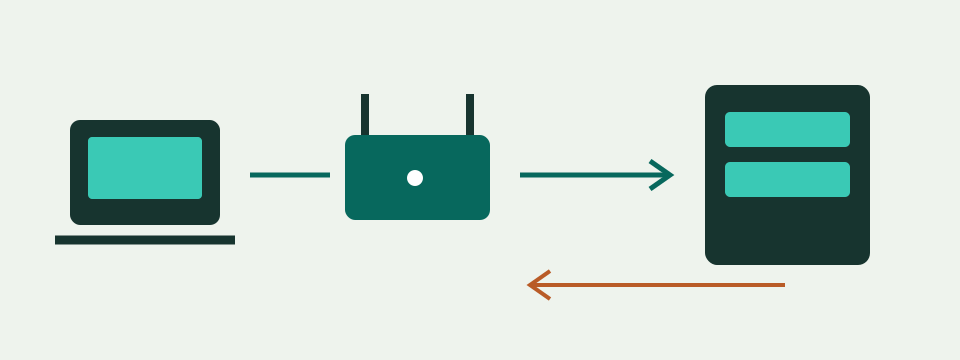
On a shared IPv4 connection, several devices can present the same router or provider gateway address to an external service. An IPv6 request can present a different public address. These are connection concepts, not a sample of your result.
Choose the Address-Family Question
Automatic mode asks api64.ipify.org for the public address used by that request. On a working dual-stack path it may return IPv6; on another connection it may return IPv4. IPv4 mode asks api.ipify.org and accepts only a public IPv4 result. The two modes answer different questions. Select one before the check and compare like with like when investigating a route change, VPN or mobile handover.
The page does not run the request on load. Review the notice, select consent and press the check button. The browser then contacts ipify directly over HTTPS rather than sending the address through the Savvy Toolkit server. Credentials are omitted, caching is disabled and the referrer policy is no-referrer. The external provider still receives ordinary connection metadata needed to answer the request, including the source address it observes.
Read the Result as One Observation
A successful result contains the normalized public IP, its IPv4 or IPv6 family, the ipify provider label and a UTC check time created after the response is accepted. That time describes this observation, not the date the address was assigned. Copy copies only the address. Save the timestamp separately when evidence matters, because copying does not create a history and a later run replaces the displayed observation.
The response must be successful JSON, identify a valid public address and stay within 2 KiB. IPv4 mode rejects a non-IPv4 answer. The browser deadline is 12 seconds, and Stop, leaving the page or hiding the tab cancels an active request. A timeout, blocked third-party request, provider failure or unsupported route becomes an explicit unavailable state. The page does not substitute an address from browser headers or invent a result after failure.
Compare a VPN or Network Change Carefully
Record the first family, address, connection state and time. Change only the intended condition, such as connecting the VPN, switching Wi-Fi or moving to mobile data, then repeat in the same mode. A changed address is evidence that the selected request used a different visible exit. An unchanged address is only an observation; split tunnelling, browser-specific routing, a failed VPN change or the same provider exit can each require separate checks.
Do not compare an automatic IPv6 observation with a forced IPv4 observation and call the difference a VPN result. Run IPv4 before and after for one controlled comparison, then use automatic mode separately to see which family that endpoint receives. A single request cannot test DNS leakage, WebRTC behavior, every browser profile, every app or all traffic destinations. This tool supplies one address observation, not a complete privacy or tunnel audit.
Separate Public, Private and Shared Addresses
The returned address is the public source visible to ipify for this request. It is not necessarily a unique address assigned to the device. Home NAT can make several local devices share one public IPv4, and carrier-grade NAT can make subscribers share a provider gateway. IPv6 can expose another public address or prefix while local devices also keep link-local and private-use addresses. The tool does not enumerate network interfaces or router configuration.
Addresses such as 192.168.1.1 and 10.0.0.5 are local private IPv4 examples and are not valid results here. A router settings page or operating-system network panel is the right place to inspect local addresses. Public reachability is also separate: seeing a public address does not prove unsolicited inbound traffic can reach a device. Firewalls, NAT rules, provider filtering and service configuration still determine which connections are accepted.
Avoid Location and Identity Overclaims
This check does not request device location and does not return city, ISP, ASN, proxy score or a map. Competitor tools often add those database estimates, but this narrower result is easier to interpret. An IP address can be associated with a network allocation or approximate service location without identifying a household, person or street. Mobile gateways, enterprise exits, hosting networks and VPNs can make location databases disagree with the device's position.
Do not publish the address casually in screenshots, support forums or documents. It can help an authorised support team identify logs or allowlist a connection, but it is not a password and it is not proof of who used the connection. Share only with the intended recipient and remove it from examples when unnecessary. Savvy Toolkit stores no result history in the page, but provider and hosting request logs remain an owner policy question for deployment review.
Use the Next Check That Matches the Question
Use IP registration lookup when you need the administrative network range and registered holder for a public address. Use the CGNAT and double-NAT guide when comparing local router WAN observations with an external IPv4. Use the VPN speed comparison for before-and-after throughput, not for address identity. These tasks use different evidence, and a public IP result alone should not be stretched into a registration, topology, speed or security verdict.
Repeat the check after a meaningful change rather than refreshing rapidly. Dynamic addresses can change, but the tool cannot predict lease duration or permanence. If automatic mode fails while IPv4 works, keep the observations separate and investigate IPv6 support in the browser, network and provider. If both fail, browser privacy controls, DNS, outbound HTTPS policy, provider availability or CORS behavior may be involved. The unavailable message preserves that uncertainty instead of reporting a guessed address.
What the Result Means
A VPN, proxy, browser routing rule or mobile gateway can affect the observed address. One successful request does not enumerate every IPv4/IPv6 address or prove privacy. The browser cannot read a router’s private LAN address through this check.
Common Questions
Why Can Another IP Website Show a Different Address?
It may use a different address family or route. Compare IPv4 with IPv4 at the same time and connection state.
Does This Give My Street Address?
No. It returns the address seen by ipify for this request. It does not use location permission.