How to Use This Tool
- Choose a JPEG, PNG or WebP image up to 10 MiB, or start the camera and answer the browser permission prompt. Camera access needs a supported browser in a secure context.
- Keep the whole code visible, including its clear border. For a camera scan, adjust position and lighting while watching the actual preview. A rear-facing camera is requested as a preference, not guaranteed.
- Read the decoded text before using it elsewhere. Stop ends camera capture; hiding or leaving the page also stops it. Clear removes the displayed result.
Calculation Method
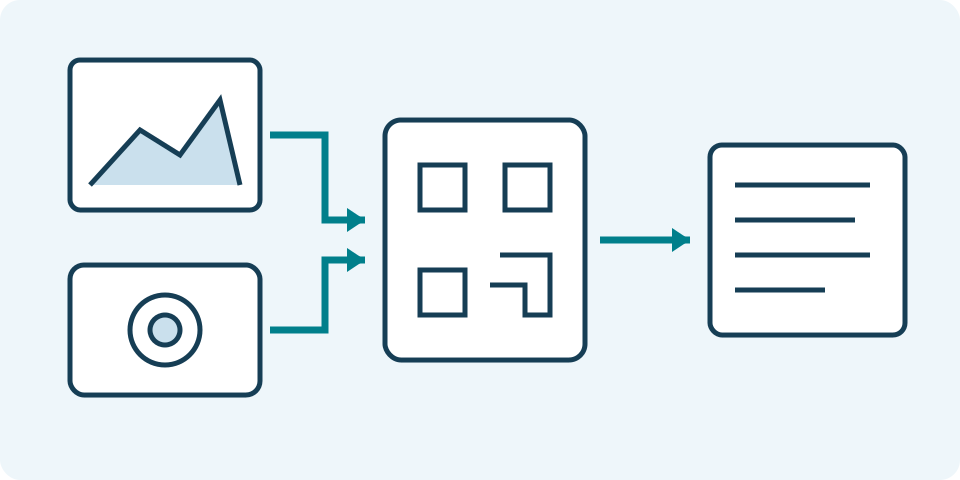
A local decoder examines image pixels for a QR pattern. Images are resized to a maximum edge of 2,048 pixels; camera samples use at most 1,280 pixels and run about four times a second. These are processing limits, not claims about camera resolution or QR quality.
Worked Example
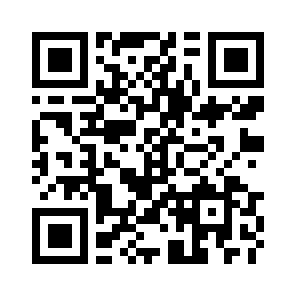
A code containing https://example.com/ should display that address as text. Decoding it does not contact the website, inspect redirects or establish that its destination is safe.
Read a Saved Image or Request the Camera
Choose image mode for a saved screenshot or photograph, then select the file and start the read. Supported signatures are JPEG, PNG and WebP, with a limit of 10 MiB, or 10,485,760 bytes. Renaming another format does not make it supported. The input is a file chooser; this page does not offer drag-and-drop, clipboard image paste, a remote image URL or PDF scanning. Preserve the original image when making a clearer copy for another attempt.
Camera mode starts only through its button and a browser permission request. It needs a supported secure context and available camera. The request prefers a rear-facing camera but does not guarantee that device or offer a camera selector. Audio is not requested. Denied permission, no camera and a failed camera operation have separate messages. A permission prompt can remain pending until answered; it is not evidence that a code has been read.
Understand the Local Decoding Limits
The scanner draws image pixels into a temporary canvas and decodes them locally. Large saved images are reduced to a longest edge of 2,048 pixels without enlargement. Camera frames use a 1,280-pixel longest-edge ceiling. The aspect ratio is preserved with whole-pixel dimensions. This bounds the pixels inspected; it is not an improvement to the original image's detail. A small code occupying little of a large screenshot can become harder to decode after reduction.
For example, a 4,000 × 2,000 image becomes 2,048 × 1,024 for saved-image decoding. A 1,000 × 500 image stays at those dimensions. Keep the entire code and its surrounding clear border when making a tighter image. Avoid cutting off corners or modules to meet a file limit. The reader tries normal and inverted contrast through its decoder, but does not guarantee every damaged, stylized or low-contrast code can be recovered.
Read the Text Before Taking Another Action
A successful decode displays text, not an automatically opened destination. QR contents can be a web address, ordinary text or structured data such as contact or network information. This page shows that content as text; it does not connect to Wi-Fi, create contacts, start calls, compose mail or execute a protocol-specific action. It also does not fetch a decoded link to check its current destination or follow redirects.
The display is limited to 4,096 Unicode code points. Longer contents are marked truncated, so the visible portion must not be treated as the complete payload. Copy copies the displayed text, including that limit. A clipboard failure is reported; it is not a successful copy. Check the visible domain and task before deciding independently what to do with a link. A successful decode establishes readability, not that the content is trustworthy or the destination currently works.
Separate No-Code from Request Failure
A readable image with no detected QR code gives a no-code message. A format, bitmap or canvas failure is a different condition. No-code does not prove the image never contained a code: scale, blur, glare, cropping or unsupported damage can prevent detection. Try a sharper original or a tighter image preserving the full code before interpreting another failure. There is no general barcode-mode selector or batch report of every code in one image.
Camera mode checks successive available frames and stops after the first decoded result. Point at one intended code to avoid interpreting an unintended nearby one. Move steadily and keep it in focus rather than repeatedly restarting the camera. The page supplies a downloadable deterministic example image for an independent local read. That fixture checks the saved-image workflow; it does not prove that the actual camera, permissions or lighting on a device have been tested.
Stop and Clear Deliberately
Stop releases the active camera tracks and invalidates pending work. Hiding the tab, changing mode and leaving the page also stop camera work. A camera granted after a cancelled request is released rather than adopted by the old scan. Stop can leave a completed text result visible; clear removes the selected file and result. These controls do not erase every copy of the image from the device or revoke its browser permission permanently.
The selected image and decoded pixels are not uploaded by this scanner. Normal page and asset requests still occur, and subsequent opening or sharing of decoded content is a separate action. A payload may contain passwords, contact details or temporary access information, so do not publish its text merely because decoding happened locally. Use the local-file guide for the distinction between reading data in the browser and reviewing what can safely be shared.
What the Result Means
Blur, glare, cropping and downsampling can prevent decoding, especially for dense codes. No result does not prove a file contains no QR code. Long decoded values are truncated and marked incomplete. Camera permission can be denied, unavailable or left pending; no access is simulated.
Common Questions
Does This Test a Link’s Safety?
No. It reads the code’s contents. A familiar name, valid URL or successful scan does not verify the destination.
What Can I Do When the Camera Is Unavailable?
Check the browser’s camera permission and other apps using it, or try a local image. An access error does not identify a single hardware cause.