Start with the Exported File You Need
Write down the purpose of the estimate before choosing a bitrate. Planning the size of an exported video, reserving space for camera originals and deciding how long an upload will take are related tasks with different inputs. This guide covers a file whose average video rate, average audio rate and duration are supplied. It does not calculate raw image storage from resolution or predict an encoder's quality. An MP4 extension alone does not provide the rate needed for the calculation.
For a planned export, use the settings of the actual export profile and mark target rates as assumptions. For an existing file, the file's actual byte count is better evidence of its current size than a new estimate. An average reported for one stream may omit another stream or container data. Keep the source of every rate alongside the number. This makes a later mismatch useful evidence rather than a reason to adjust numbers until they fit.
Enter Rates in the Units on the Form
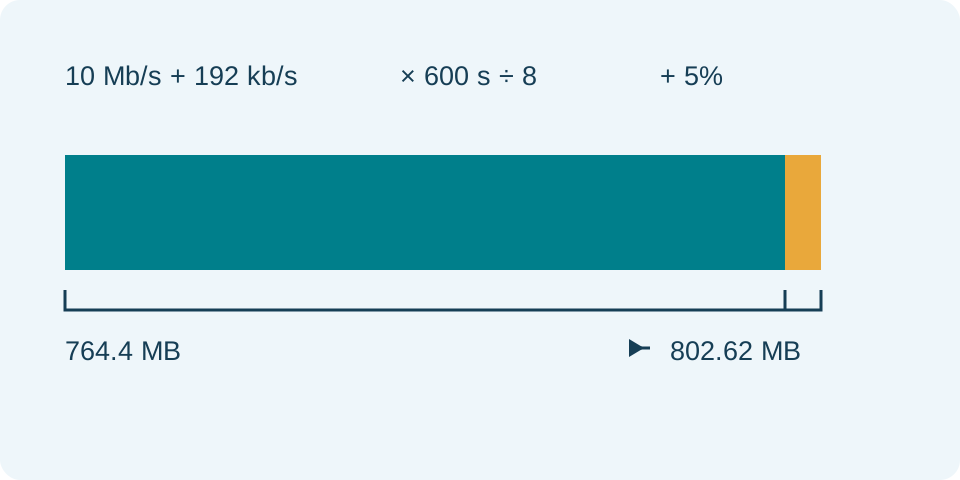
Savvy Toolkit asks for video rate in Mb/s and audio rate in kb/s. Both are decimal bits per second: multiply the video input by 1,000,000 and audio input by 1,000 before adding them. A byte contains eight bits. A measured transfer rate in MB/s is therefore not the same kind of number as the video input. Writing 6.4 MB/s into a field expecting 6.4 Mb/s creates an eightfold rate error.
Check whether the supplied bitrate covers video alone or the entire file. An overall file rate that already includes audio should not have the same audio added a second time. Where stream rates are available, use video and audio separately. For several audio tracks, their combined average can be entered as the audio assumption, but the tool does not count tracks itself. Unknown subtitles, metadata and container overhead remain outside the payload calculation unless your allowance covers them.
Use the Complete Duration in Seconds
Convert the intended exported interval, not merely the source recording's headline length. Fifteen minutes is 900 seconds; fifteen minutes and thirty seconds is 930 seconds. A decimal entry of 15.30 minutes means a different number and is not accepted as a time notation by this seconds field. Trimmed introductions, repeated segments and added end cards change the final interval. Use the export's planned duration and record how it was obtained.
For comparisons, keep duration fixed while changing a rate, or keep rates fixed while changing duration. Doubling duration doubles the payload in this model. Doubling only video rate does not quite double total size when audio stays unchanged. Those distinctions help explain two estimates without blaming the codec or resolution. The form accepts a positive duration, positive video rate, nonnegative audio rate and nonnegative allowance. It rejects invalid or excessively large calculations rather than presenting a believable-looking result.
Work Through an Independent Size Example
Take a 900-second export at an assumed average video rate of 6.4 Mb/s and audio rate of 128 kb/s. The combined rate is 6,528,000 bits per second. Across the interval that is 5,875,200,000 bits, or 734,400,000 payload bytes after dividing by eight. This is 734.4 decimal MB before allowance. The example uses invented planning inputs, not a measured camera or export profile, and does not recommend a quality level.
Add a 3% planning allowance: 734,400,000 × 1.03 = 756,432,000 bytes. The displayed decimal size is 756.432 MB or 0.756432 GB. The same byte count is about 721.390 MiB or 0.704482 GiB. These are equivalent quantities expressed with different divisors. A result expressed in MiB is numerically smaller than the corresponding MB result without implying that any bytes vanished. Keep the unit attached when comparing it with a service's size limit.
| Video (Mb/s) | Audio (kb/s) | Allowance (%) | Payload bytes | Estimated bytes |
|---|---|---|---|---|
| 6.4 | 128 | 0 | 734400000 | 734400000 |
| 6.4 | 128 | 3 | 734400000 | 756432000 |
Treat the Allowance as a Chosen Assumption
The added percentage multiplies the whole video-plus-audio payload. It is not a measured container overhead, a reserved disk partition or an encoder setting. Zero shows the plain payload model. A chosen 3% creates a margin of 22,032,000 bytes in the worked example. That exact arithmetic does not establish that the actual export will have 3% overhead. A larger margin also cannot repair an incorrect duration or a rate entered in the wrong unit.
Avoid counting the same uncertainty twice. A rate calculated from the whole existing file already incorporates that file's stored data; adding its container allowance again overstates the same contribution. When a stream-only planning rate is used, document what your allowance is meant to cover. Repeat comparable short exports to estimate how far actual output differs from the model. Keep measured byte counts and assumptions separate instead of labeling all of them measured overhead.
Understand Constant and Variable Rate Settings
An average rate describes bits across an interval. A peak or maximum rate describes a different constraint and should not silently stand in for the average. Variable-rate encoding can spend different amounts of data on different scenes. A low-detail still frame and rapid motion can therefore yield different sizes under a quality-based setting even with the same resolution and duration. This calculator cannot inspect the material or forecast that variation from the filename.
Target rate, maximum rate and quality controls in an encoder have different purposes. FFmpeg's documentation distinguishes its bitrate options from other controls; use the documentation for the actual encoder and mode in your application. Do not transfer a rate from a different codec and call it equal quality. A short representative export supplies a useful comparison, but a quiet opening is a weak sample for a later fast-moving sequence. Keep the actual chosen mode with the estimate.
Investigate a Mismatch with the Export
Compare the exported file's actual bytes and actual duration first. Then check whether video and audio rates are averages for their separate streams or an overall file value. Media-inspection tools such as ffprobe can report stream and format information, although missing fields remain missing and their units still need checking. Savvy Toolkit does not run ffprobe or read your video. Its calculator works from entered numbers and neither uploads nor re-encodes the file.
Look next for extra audio tracks, alternate exports, different trims, an allowance applied twice or a change of encoder mode. A size difference alone cannot identify which of these occurred. Preserve the settings and compare one change at a time. When actual size is known, use it directly for delivery and storage planning. A mathematical estimate is most helpful before that evidence exists, or for comparing a clear set of future assumptions.
Plan Upload and Storage from the Right Count
Use the upload-time calculator with the estimated bytes before export and actual bytes afterwards. Match its file-size unit, enter an observed upload rate relevant to the destination and allow for preparation and verification separately. The video size estimate is stored media data, not a claim about network traffic or provider processing time. Upload retries, other users, browser scheduling and the receiving service can change elapsed time without changing the stored file's byte count.
For storage, count every file that must remain: source material, exports, revisions and backups are not interchangeable. The storage-space calculator can total a documented set of file assumptions, while the drive-capacity converter separates decimal and binary labels. A 756.432 MB export alone does not describe an editing project's temporary storage needs. Keep the deliverable size separate from working space and verify the available destination space before a large export or copy.
Check the Delivered File as a Separate Task
Open the final export and verify its intended duration, beginning, end, visible content and audio tracks with a suitable player. Confirm the actual file meets the destination's published limits and supported format. A file small enough to upload is not automatically readable, complete or visually acceptable. This guide's arithmetic gives no quality score and does not test captions, color handling, playback compatibility or the account's current upload restrictions.
Keep a compact record containing rate source, units, duration, allowance, calculated bytes, exported bytes and any observed difference. It helps reproduce the estimate for the next revision and prevents a mistaken decimal/binary comparison. The calculator remains useful for documented assumptions rather than promises of an exact future encoder result. A final delivery decision should use the actual exported file and the destination's current requirements, with the estimate retained as planning evidence.