How to Use This Tool
- Enter the advertised capacity and select its decimal unit.
- Leave reserved space at zero for a pure conversion, or enter your own percentage.
- Read the original byte count, equivalent GiB and remaining capacity after your allowance.
Calculation Method
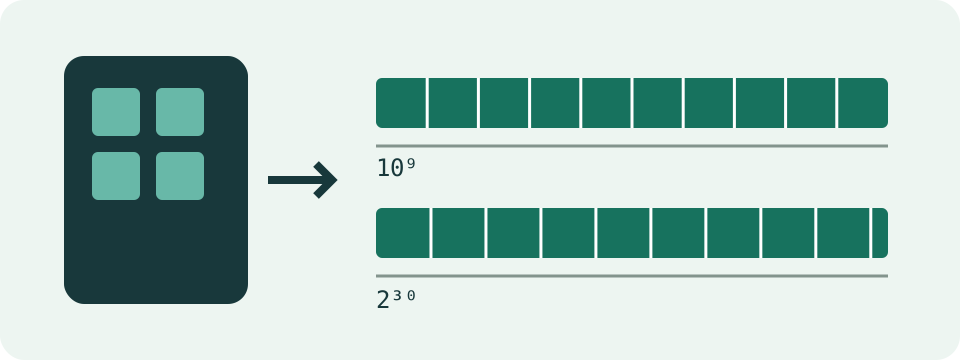
Convert the capacity to decimal bytes, then divide by 1,073,741,824 for GiB. One GB is 1,000,000,000 bytes. Remaining bytes equal original bytes × (1 − reserve/100).
Worked Example
A decimal 1 TB drive contains 1,000,000,000,000 bytes, equivalent to about 931.3226 GiB. With a user-selected 10% reserve, the planning result becomes about 838.1903 GiB.
Use the Storage Unit Converter
The separate unit converter on this page works in both directions, including bits, bytes, decimal KB through PB and binary KiB through PiB. Select the source unit before entering the value, then choose the destination. Zero is a valid size. Decimal units use powers of 1,000; binary units use powers of 1,024. The converter does not subtract file-system overhead or reserved capacity. Those remain separate choices in the drive-capacity calculator above.
Start with the Capacity You Actually Want to Compare
Use a drive's stated capacity for a label-to-unit comparison. Use an exact reported byte total for a comparison of device reports. A volume's free-space number answers a different question: how much room currently remains in that volume. Mixing those three starting points can produce a misleading conclusion even when the arithmetic is correct.
Leave the reserve at zero for a pure conversion. The result then shows the same bytes expressed in GB and GiB. This page does not access the drive, inspect partitions or determine the amount occupied by files. Record the model, source of the capacity figure and full unit before comparing the result with another screen.
Understand a Smaller Number Without Calling It Lost Space
A decimal 512 GB capacity contains 512 billion bytes. Dividing that total by the byte count of one GiB gives approximately 476.8372 GiB. The numbers differ because GiB is a larger unit. The conversion has removed no bytes. A screen that shortens its label to GB can still need its convention checked before the comparison is meaningful.
The reference table below changes only the scale. It assumes the stated decimal quantity and a zero reserve. These figures are not measured capacities for every product sold under that label. Product documentation and actual device reports still matter. Formatting or files should not be inferred from the gap between a decimal number and its binary equivalent.
| Stated decimal GB | Equivalent GiB, rounded |
|---|---|
| 128 | 119.2093 |
| 256 | 238.4186 |
| 512 | 476.8372 |
| 1000 | 931.3226 |
| 2000 | 1862.6451 |
Separate Raw Capacity, Formatted Capacity and Free Space
A device total, a formatted volume total and the space still available in that volume need not be identical. Partition layout, filesystem structures, recovery areas, operating-system data and existing files can affect the reports. Apple's storage guidance explicitly separates packaging capacity from formatted capacity and space used by the system. Those uses are separate from changing units.
For a comparison, first identify what each screen describes. Convert both values to the same scale, then compare the matching quantities. A free-space figure should be compared with another free-space figure for the same volume, not with packaging capacity alone. This calculator provides the unit conversion; it does not account for those allocations automatically or enumerate hidden partitions.
Make a Reserve a Visible Planning Choice
A chosen reserve is deducted from the entered capacity. For a hypothetical 512 GB capacity and a 15% reserve, 435.2 GB remain in the model, equivalent to approximately 405.3116 GiB. The 15% is your assumption. It is not a measured formatting cost, a manufacturer requirement or a recommendation for every SSD and hard drive.
A reserve of zero applies no deduction. A reserve of 100% leaves zero in the planning result, while the original converted total remains unchanged. The field accepts the range from zero to 100 and rejects values outside it. Choose a reserve for a stated purpose and retain that assumption with the result, so a future comparison does not treat it as observed free space.
Compare a Storage Requirement on the Same Basis
Suppose a planned collection needs 400 GB of file data. A 512 GB capacity with a 15% reserve has a modeled 435.2 GB budget, leaving 35.2 GB between those assumptions. That arithmetic comparison excludes any unmodeled system files, allocations or temporary working space. It does not certify that an actual destination has enough free space for the operation.
An added file allowance is different from reserving a fraction of capacity. Adding 15% to 400 GB gives a 460 GB requirement. Reserving 15% of 512 GB leaves 435.2 GB. Both percentages can be reasonable descriptions of separate planning choices, but neither can replace the other. Use the storage planner for the requirement, then compare it with an appropriate available-capacity report.
A Conversion Is Not a Hardware Diagnosis
The smaller GiB number alone cannot identify a faulty drive, prove product authenticity or confirm a complete backup. A diagnostic question needs relevant device reports and tests. Avoid formatting or deleting data merely to make two unit labels match. Unit conversion cannot recover space because it has not removed any space in the first place.
For multiple-drive storage, redundancy and layout are another calculation. Use the separate RAID capacity tool for its stated array assumptions, then examine the actual system's configuration. This page handles a quantity and optional reserve rather than modeling an array. Keep full-precision values during comparisons and round only the displayed numbers; extra decimals do not add evidence about the hardware.
What the Result Means
This page does not read your drive. Partitions, filesystem metadata, recovery areas and existing files affect actual free space. A reserve entered here is a planning assumption, not a measured formatting deduction.
Common Questions
Does a Smaller GiB Figure Mean Bytes Disappeared?
No. The conversion expresses the same byte total using a larger unit. Additional space used by partitions and files is a separate matter.
Can This Identify a Faulty Drive?
No. Check the device's reported byte capacity and diagnostic results. A number expressed in another unit is not a hardware diagnosis.