How to Use This Tool
- In Windows 11, open Settings > System > Storage and note the system drive’s free space.
- Choose total-target mode for required total free space, or additional-warning mode for the extra space Windows requests. Keep both figures on the same reporting basis.
- Read the gap and equivalent total target, then review Windows’ storage recommendations and the current update message.
Calculation Method
Total-target mode subtracts current free space from the required total; the shortfall cannot be below zero. Space above the target is the reverse difference, also with a minimum of zero. Additional-warning mode uses the requested extra amount directly as the shortfall. Its equivalent total target is current free space plus that amount.
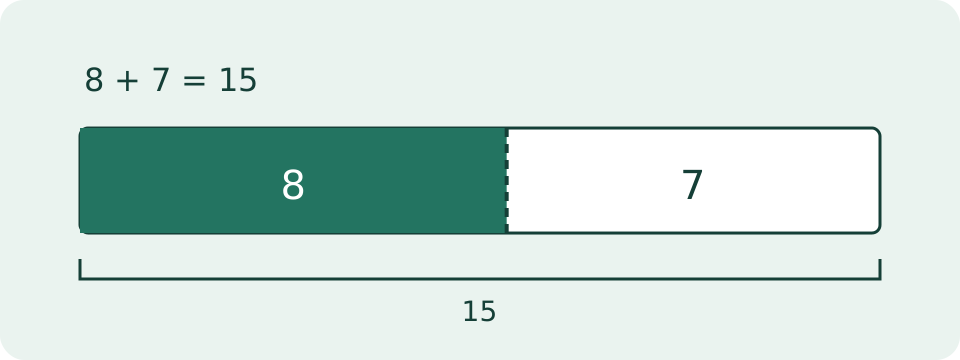
Worked Example
A drive with 8 GB free and a required free-space target of 15 GB is short by 7 GB. A drive with 20 GB free is 5 GB above that same target.
Copy the Warning's Meaning as Well as Its Number
Read the current Windows Update message before choosing an input mode. A total free-space target includes space already available. An additional-space warning asks for more space beyond the current amount. Entering that additional amount as a total target can erase a real shortfall from the calculation. The labels distinguish those two meanings; the page does not obtain the update requirement itself.
Use current free space on the system drive, not the drive's full capacity or the computer's combined free space. A second partition with plenty of space does not add that space to the system partition. The browser does not inspect either drive. Copy both figures from the relevant Windows display or installation instructions.
Check the Two Calculation Modes
With 9 GB free and a total target of 16 GB, the gap is 7 GB. In additional-warning mode, 9 GB free and a request for 7 GB more produce the same 16 GB equivalent target. The second mode does not subtract 9 from 7. It treats the warning as the gap already calculated by Windows.
Total mode reports max(0, target minus free) as the shortfall and max(0, free minus target) as the surplus. Additional mode sets target to free plus the requested amount. Zero is allowed for a comparison that needs no extra space. Negative, missing or nonfinite figures are rejected rather than interpreted as a usable storage target.
| Mode | Free (GB) | Entered amount | Total target | Gap | Surplus |
|---|---|---|---|---|---|
| Total | 9 | 16 | 16 | 7 | 0 |
| Additional | 9 | 7 | 16 | 7 | 0 |
| Total | 18 | 16 | 16 | 0 | 2 |
| Additional | 9 | 0 | 9 | 0 | 0 |
Keep One Reporting Basis
Use figures from the same display basis for both inputs. Windows may label a storage quantity GB while another application uses a different byte convention. A generic capacity conversion cannot correct a warning whose unit basis is unknown. French labels on this page use Go; they still represent the manually entered quantity, not a scan of exact free bytes.
Decimal inputs are supported without thousands separators. A current amount of 9.5 and a total target of 16 gives a gap of 6.5 on the shared basis. Retain the displayed precision when possible. The calculator's six-decimal display is an arithmetic format, not evidence that Windows measured free space to that accuracy.
Treat the Result as a Dated Snapshot
The calculation compares the values entered at that moment. Suppose Windows asks for 7 GB more while 9 GB is free. The equivalent target is 16 GB. After freeing 2 GB, a comparison with that same total target gives a 5 GB gap. Keeping the old additional-warning value of 7 would instead reconstruct a target of 18 GB.
Re-read Windows Update after cleanup and enter its new message rather than treating the earlier warning as permanent. Switching modes converts the current comparison; it does not refresh Windows. Downloads, application activity and setup can change free space or requirements. A zero shortfall means the entered target is met, not that the installation has passed every check.
Choose Cleanup from the Actual Storage Categories
In Windows 11, open Settings, System, Storage and review the categories offered by Windows. Check the items within Cleanup recommendations before accepting removal. Personal files, downloaded installers and application data may still be useful. Previous installation files can also support a return to an earlier version; removing them has a different consequence from discarding an unneeded duplicate photo.
Keep a recoverable copy of important files before moving or removing them. Copying files elsewhere while leaving their originals on the system drive releases no space there. Moving files to another folder on the same partition also does not solve the gap. Read the system drive's free space again after the chosen operation finishes.
Separate Free Space from Other Update Requirements
The update download is only one part of the working storage needed during setup. Installed content and the update path can change requirements. Do not substitute a generic minimum drive-capacity requirement or a downloaded package's size for the current free-space message. This checker has no Windows version preset, eligibility database, update download or repair command.
Use external storage only through the option Windows Update actually offers and follow its instructions. Internal free space can still be required. Meeting this arithmetic target does not confirm hardware support, update eligibility or completion. Retain the update identifier and exact message for a separate troubleshooting step when space is adequate but another error remains.
What the Result Means
The comparison covers only the entered storage target. It does not confirm update eligibility or successful installation. Requirements can change during setup. Review cleanup categories and backup needs before removing data. These instructions cover Windows 11; other versions can differ.
Common Questions
How Do I Enter a Warning Asking for an Additional 7 GB?
Select additional-warning mode and enter 7 GB. The gap is 7 GB. With 8 GB currently free, the equivalent total target is 15 GB. Do not subtract current free space from the additional amount again.
Can External Storage Close the Gap?
Only follow the external-storage option offered by Windows Update. Windows can still need free space on the internal system drive.