How to Use This Tool
- Check ordinary internet access without the VPN through an allowed check or the provider’s instructions. A kill switch or managed policy can block traffic after disconnection.
- Choose where connection attempts fail, the error category shown by the app and whether ordinary internet access works. Count only networks actually compared; leave untested observations unknown.
- Follow the matching checks in the provider’s app or the operating system’s VPN settings. Keep company-managed changes with the administrator and check the provider’s official status information.
Calculation Method
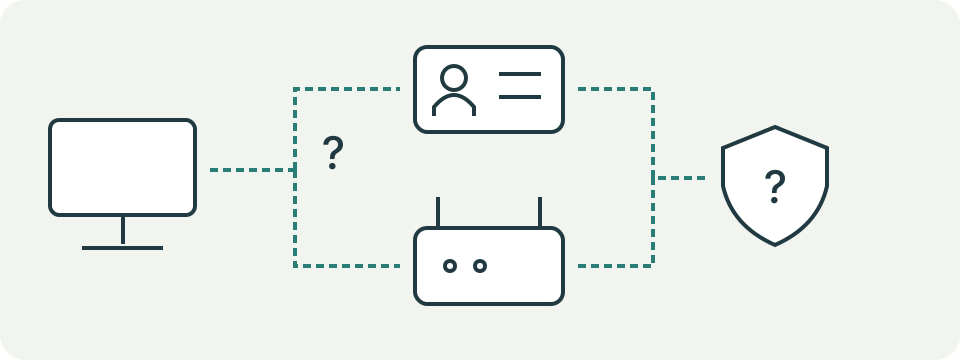
The checklist uses network comparisons, the reported error category and ordinary connectivity without the VPN to suggest account, app, profile or connection checks. A difference between compared networks does not prove port blocking. Windows, macOS and third-party apps manage VPN connections differently.
Worked Example
Ordinary browsing works, but the VPN displays an authentication error. Check the account, sign-in requirements and supplied profile through the provider or administrator. This observation alone does not establish a Wi-Fi fault or a blocked transport port.
Describe the Failed Connection Precisely
A VPN that never connects needs different checks from a VPN that connects but cannot open one website. Record the application's exact state and error rather than grouping every symptom under slow Internet. This page organizes three observations into suggested checks. It does not initiate a tunnel, inspect the device, test ports or read account credentials. The recommendations remain a checklist, not a confirmed cause.
Keep the device, VPN application, version and profile together in your notes. A browser extension and a system VPN may cover different traffic. Do not assume a working webpage proves that an organization-only resource is reachable, or that an application's Connected label proves every destination works. Use the responsible provider's instructions for the actual client and profile.
Check Ordinary Connectivity Before Blaming the VPN
The third selection asks whether ordinary Internet access works without the VPN. Choose unknown for an observation not made. Where the device's rules permit a comparison, use its normal connection controls and check an ordinary destination. Do not change enforced work settings or disable required protection just to complete this form. An administrator can supply the relevant baseline on a managed device.
When ordinary access also fails, the checklist adds an underlying-connectivity check. Review the operating system's active connection and any normal network sign-in process first. A captive portal may require its own legitimate sign-in before other traffic works. Repeated VPN server changes cannot repair an unavailable local connection, but this observation alone does not identify the router, provider or device as faulty.
Enter Only Networks Actually Compared
Select one network only after the same device, app and profile have failed there and worked on another available network. Merely trying one network does not establish a network-specific failure. Select unknown when no comparison exists. All networks means all those actually compared, not every possible network. Keep the time and error for each attempt so a temporary service change is not mistaken for a location difference.
A one-network result adds checks for that network's connection process, restrictions and supported VPN options. A similar error across compared networks with working ordinary access adds app and profile checks. Neither path proves a blocked protocol or broken client. Network rules can be intentional; ask the responsible administrator about permitted settings rather than treating a restriction as permission to bypass it.
Use the Error Category Without Exposing Secrets
Authentication or sign-in errors lead to the provider's official account path. Review the exact error and any required verification in the official app or account interface. This tool needs no password, certificate, private key, recovery code or login token. A generic timeout is not enough to conclude that the password is wrong. Keep an unclear message as unknown rather than repeatedly changing credentials.
Network, timeout or server-connection errors add network checks when ordinary access is not already known to fail. Other known errors still need their exact code and platform-specific documentation. Similar wording can represent different stages of connection setup. Record the text accurately, but remove secrets and unrelated identifiers before sending it through a support channel. The page cannot validate a subscription or account session.
Review the Supported App and Connection Profile
Use the provider's current application guidance or the organization's supplied profile. Windows built-in VPN setup and a provider's separate app are different workflows. Microsoft's instructions require the actual server, VPN type and sign-in method from the responsible service. Apple's VPN settings likewise connect a configured service; they cannot supply missing organization-specific settings. Do not guess a server address or create a replacement profile from an unrelated tutorial.
A provider may offer another supported server or connection option. Record the original setting and change one supported option at a time, within the network's rules. Check official service status when a particular server stops responding. A successful retry is evidence about that attempt, not a permanent repair. Avoid removing managed profiles, broadly disabling a firewall or running a network reset before understanding the effect on other connections.
Interpret the Checklist as Conditional Advice
Several observations can add several groups of checks. A sign-in error on one compared network can show both account and network advice. Related network recommendations are deduplicated in the display. The evidence group always remains, even with unknown selections. Unknown is useful information: it keeps the next step focused on collecting a comparison rather than pretending a missing observation has already passed.
Changing the selections updates the visible recommendations; the button announces their headings for assistive technology. Reset returns all three observations to unknown. No success certificate or repaired state follows from pressing the button. A checklist can be completed while the underlying connection still fails. Record what happened after each actual attempt in the VPN app rather than treating the tool's suggestions as test results.
Prepare a Useful Support Record
Collect the app and operating-system versions, profile type, exact error, approximate time and networks actually compared. Describe whether ordinary access worked and what one permitted change altered. Use the provider's or organization's official support channel. A short reproducible sequence is more useful than a folder of unrelated screenshots; private keys and authentication codes should never be included in that record.
Once the tunnel connects, investigate slow transfers as a separate task. Compare repeatable rates with and without the permitted VPN path using the speed-loss calculator. For uncertain network delay, an HTTP timing test gives another limited observation to this site's endpoint. Neither follow-up confirms VPN security, routing of every app or the cause of an unsuccessful tunnel. The actual provider remains responsible for its connection settings and account checks.
What the Result Means
A timeout can have several causes. This page does not discover blocked ports, verify credentials, detect a DNS fault or confirm a working tunnel. Avoid disabling security controls, deleting managed profiles or changing certificates without the responsible provider’s instructions.
Common Questions
Can a Browser Page Verify My VPN Account?
No. Complete account and authentication checks only through the provider’s official app or site.
The VPN Says Connected. Does That Prove Every App Uses It?
No. Routing, split tunnelling, application settings and organisational policy can affect which traffic follows the VPN.