How to Use This Tool
- Confirm the model on the device label and compare its manual or support page. Deco X20 variants such as 4G, DSL, Outdoor and Voice are outside this reference.
- Select a listed model and its observed pattern, including steady, pulsing or blinking behavior. Choose not listed or unknown when the device or pattern is unconfirmed.
- Read the documented meaning with its source and scope. Compare the device’s own app or manual before changing settings; the page does not reset or connect to the router.
Calculation Method
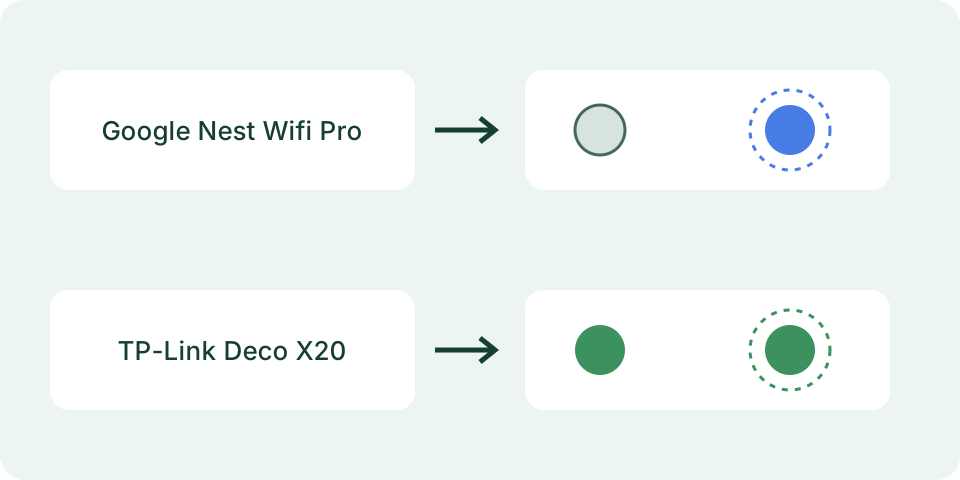
The lookup matches a model and pattern to a manufacturer reference. Nest Wifi Pro fast pulsing white covers booting or updating, so it does not identify one certain stage. Deco X20 pulsing green describes a firmware upgrade in the cited guide. Colors and timing have different meanings across models.
Worked Example
Nest Wifi Pro slow pulsing blue is documented as ready for setup; fast pulsing blue means pairing is in progress. A blue light without an observed rate does not distinguish these states. Neither selection confirms a completed setup.
Match the Exact Device Before the Color
Read the model from the device label or its official app, then identify which indicator you are watching. A modem, router and mesh point can sit together while reporting different parts of the connection. This reference currently covers Google Nest Wifi Pro and the documented TP-Link Deco X20 table. It does not decode every device with a similar enclosure, every Deco hardware revision or the original Google Wifi and Nest Wifi products.
Keep unsupported equipment under not listed rather than choosing the nearest-looking name. A model family, hardware version and operating role can matter to the manufacturer's instructions. Record those details without publishing a private label, Wi-Fi password, setup code or serial number. The page does not photograph the light, read the device label or access its app. Its model selection is your observation, not a remotely verified identification.
Observe a Pattern Rather Than One Instant
Distinguish steady light from repeated blinking or pulsing. Watch long enough to describe a repeating cycle and note when it began: after startup, during setup, after a documented update or during a connection failure. A brief color seen during a transition may not be the settled state. Do not assign an exact flash interval that you did not measure or transfer a pattern name from another model's manual.
The pattern menu contains only the entries supplied for the selected model. Unknown and not listed preserve missing evidence instead of producing a guessed meaning. Changing the model clears the previous pattern, which prevents a Deco selection from carrying a Nest pattern into the result. The checklist button announces the selected meaning; it does not scan the device. Reset clears this page's answers, without restarting or erasing any equipment settings.
Interpret the Supported Model References
For Nest Wifi Pro, this table includes solid white, slow and fast blue pulses, fast white pulses and slow yellow blinking. Read the displayed meaning and its limit together. Google's full support page has separate sections for its other products and additional patterns that are not in this smaller reference. Use the linked primary source for an unlisted observation. Do not copy a Nest Wifi point's voice-assistant light meaning into the Pro router's table.
For Deco X20, the supplied manual documents the selected startup, setup, upgrade, connected and satellite-disconnection states. The reference identifies the particular manual rather than claiming that its colors apply to every TP-Link product. A model-specific connected state is still different from a successful test of one app on your phone. The result is a documentation lookup, not a test of WAN traffic, Wi-Fi coverage, Ethernet negotiation or the internet provider's account.
Use Contrasting Examples Without a Universal Color Rule
Select Nest Wifi Pro and fast pulsing white. The supported meaning retains startup or updating as alternatives. A white light does not automatically mean a completed online state, and the page cannot tell which activity is happening. Compare that with solid white on the same model. The two menu entries describe different documented observations. Do not collapse them into a single white-means-working rule or stop an update based on a momentary color.
Select Deco X20 and pulsing green. Its supplied reference describes a firmware upgrade, while solid green describes a completed connected setup. Green therefore does not have one universal action even within that model. Pulsing red in this table is specifically the satellite's lost connection to the main Deco; it is not a general verdict that the internet provider is down. These comparisons reproduce the existing lookup, not hardware measurements made by the browser.
Choose Follow-Up Checks from the Reported Function
Keep an update or setup state separate from a stable failure state. Follow the manufacturer's instructions for the actual activity; do not interrupt a documented upgrade to try a generic restart tip. A normal restart and a factory reset are different operations. Reset can remove configuration and is not a button on this page. Use the exact model's procedure and keep the necessary setup information before considering any action that erases settings.
For a connection observation, compare what actually fails: several websites on one client, the same task on another available client or a supported independent connection. Keep the upstream modem or gateway separate from a satellite. A service outage may coexist with a local problem. The app-outage checker compares supported providers' published status with your observations; it cannot inspect your ISP line. A healthy-looking device light alone does not prove that the failing service is reachable.
Keep Evidence That Support Can Use
Record model, indicator location, color, behavior, start time, recent activity and the exact failing task. A short description of a repeated pattern is more useful than the word blinking by itself. Note the linked manual section and whether your exact observation is covered. Repeat only a supported comparison and record the result. The static diagram illustrates observations, not a photograph of a tested router or evidence that a particular unit is defective.
Use the connection-path guide to organize upstream and downstream observations and the speed test only for its specific browser-to-server measurement. A speed number cannot certify the meaning of a light or check every part of a connection. Keep unlisted patterns unresolved and ask model-specific support when the documentation does not match. Do not add an invented meaning to make the lookup feel complete. Its useful result is a scoped reference plus the evidence needed for a next check.
What the Result Means
Only listed patterns are supported. The Deco source is guide REV4.0.0; check the actual hardware revision and region. A documented connected state does not test every website, and a network-error pattern does not prove an ISP outage or a faulty cable. Unlisted models receive no inferred meaning.
Common Questions
Does Green Always Mean the Router Is Working?
No. In the cited Deco X20 guide, solid green indicates connected setup, while pulsing green indicates a firmware upgrade.
Should I Factory-Reset After Seeing an Unfamiliar Light?
Check the exact manufacturer instructions first. This reference does not recommend a reset from color alone.